Block basics
The boilerplate for a block generated with the create-block command provides some foundational functionality. Let's explore the implementation of block components.
Workflow
The workflow source code includes a single file, main.tpl.tengo, which is the main entry point for the workflow. The syntax is based on the Tengo language, a simple scripting language inspired by Go. For a basic understanding of Tengo syntax, refer to this tutorial.
Future versions of the Platforma SDK will use TypeScript to describe workflows.
Here's the content of main.tpl.tengo:
// "Hello, %user%"! workflow

wf := import("@platforma-sdk/workflow-tengo:workflow")

wf.body(func(args) {
  return {
    outputs: {
      message: "Hello, " + args.name + "!"
    },
    exports: {}
  }
})
Workflow library
We first import the workflow library (wf) from Platforma SDK, which provides essential methods for defining the workflow.
The primary method is body(function), which sets the body function of the workflow. This function is executed each time the user initiates the workflow in the user interface with the run button.
Arguments
The body function accepts a single argument, args, which is a map of input arguments from the user interface. In this example, we expect one argument: a string name. We can validate the arguments using the validateArgs(schema) method:
wf.validateArgs({
  name: `string`
})
If the arguments differ from the expected structure, the workflow will produce an error. Learn more about argument validation.
Results
The body function returns a map with outputs and exports. Outputs are results used within the current block, not shared with downstream blocks. Here, the output is a message with the string "Hello, %user%!". We have no exports in this example.
Each result is stored as a resource in the backend's database. If a result contains only primitive types (strings, numbers), it is saved as a JSON resource. This applies at any level of nesting, as shown in the below example:
outputs: {
  jsonOutput: {
    f1: "string",
    f2: {
      a: "a",
      b: { c: 42 }
    }
  }
}
In future sections, we will cover other result types like files, uploads, logs, and data frames.
Model
The model consists of a single index.ts file written in TypeScript:
import { BlockModel } from "@platforma-sdk/model";

// Define the type for workflow arguments
export type Args = {
  name: string | undefined;
};

// Create the block model
export const model = BlockModel.create<Args>()

  // Set initial block arguments
  .initialArgs({ name: undefined })

  // Define when arguments are considered valid
  .argsValid(
    (ctx) => ctx.args.name !== undefined && ctx.args.name.trim() !== ""
  )

  // Define output for the user interface
  .output("message", (ctx) => ctx.outputs?.resolve("message")?.getDataAsJson<string>())

  // Block sections in the left panel
  .sections([{ type: "link", href: "/", label: "Main" }])

  .done();
The model is created using the BlockModel.create() method, which returns a builder object for defining the model.
Arguments
The BlockModel.create() method requires a type argument that specifies the structure of the workflow arguments. Here, we define a single argument name as either a string or undefined. The model builder provides two methods to handle arguments:
-
initialArgs(args): This method sets the initial default values for the arguments before the user provides input through the UI. -
argsValid(callback): This method defines a condition under which the block can be executed (i.e., when the "run" button becomes active). The callback function returns a boolean value indicating whether the arguments meet the criteria to run the workflow. Here, the condition is thatnamemust not be empty.
Note, that the name argument can be undefined, reflecting the state before the user sets the name in the UI for the first time. The same can be achieved with optional properties:
export type Args = {
  name?: string;
};
export const model = BlockModel.create<Args>()
  // name is undefined
  .initialArgs({})

  // ...
Outputs
The output(name, callback) method defines how workflow results are made available in the user interface. It takes two arguments: the name of the output and a callback function that specifies how to derive the output's value from the block's state.
The callback function can perform various operations to compute outputs. For example, to add an output that calculates the length of the message result, you could add the following line:
.output("messageLength", (ctx) => ctx.outputs?.resolve("message")?.getDataAsJson<string>().length)
The ctx argument provides access to the workflow outputs (ctx.outputs), current arguments (ctx.args), the result pool, and persisted UI state. The use of resolve(name) fetches the resource associated with a workflow result stored in the backend's database. In this simple example, message is a JSON string, accessed using getDataAsJson<string>(). In future examples, we will explore how to handle other resource types like files or data frames.
Sections
The model also specifies the UI sections available to the user. Each section corresponds to a page defined in the user interface. In this example, the model defines a single "Main" section, but in more complex blocks, you can define multiple sections to organize different parts of your application.
In future sections, we will explore how to create blocks with multiple sections, implement navigation, and manage dynamic sections.
User interface
The user interface of a block is a web application built using the Vue.js framework.
For a good basic overview of Vue.js, refer to the beginner's guide at Vue.js.
The Vue.js application has the following file structure:
├── src
│   ├── main.ts
│   ├── app.ts
│   └── pages
│       └── MainPage.vue
├── index.html
└── package.json
The index.html and main.ts files contain the standard setup code for a Vue application and are rarely modified by block developers. You can typically ignore them unless you need to customize the initial setup.
App
The app.ts file contains the UI implementation. Typically, you only need to modify the list of sections (routes) to match those defined in the model:
import { model } from "@pl-open/milaboratories.hello-world.model";
import { defineApp } from "@platforma-sdk/ui-vue";

import MainPage from "./pages/MainPage.vue";

export const appProvider = defineApp(model, () => {
  return {
    routes: {
      "/": MainPage
    },
  };
});

// to use app on the pages
export const useApp = appProvider.useApp;
Details on defineApp
The defineApp(model, routes) function from the Platforma SDK returns an application provider used across pages. It provides an instance of the application that you can access in your pages via the useApp() method. The model is imported from the model package and used to set up the proper types for arguments and outputs in the application.
The routing function specifies how Vue pages map to sections defined in the model. You must provide a Vue page for each section defined in the model.
The app instance, accessed with useApp, provides reactive access to the workflow arguments, outputs, and UI state. Below we will use two app accessor properties:
app.args: Arguments of the workflow used in the UI.app.outputValue: Read-only values of the outputs defined in the model.
There are other state accessors provided by the app and more advanced APIs for creating models, which we will see later.
The app is also responsible for state persistence. For example:
- It triggers argument updates to the backend when they are modified in the interface by the user.
- It updates the view when workflow results are updated.
- It updates the view when arguments are changed from the backend (i.e., if the user did something on another device).
Main page
The main page is a typical Vue single-file component, encapsulating both the page logic and the HTML template:
<script setup lang="ts">
import { useApp } from '../app';
import { PlAlert, PlBlockPage, PlTextField } from '@platforma-sdk/ui-vue';

const app = useApp();
</script>

<template>
  <PlBlockPage>
    <PlTextField v-model="app.args.name" label="Enter your name" clearable />
    <PlAlert type="success" v-if="app.outputValues.message">
      {{ app.outputValues.message }}
    </PlAlert>
  </PlBlockPage>
</template>
The <script setup lang="ts"> section contains TypeScript code for the page logic. In this simple example, it imports the app instance, which manages the state and interactions.
The <template> section defines the HTML layout using Platforma SDK's UI Kit. This kit offers a variety of components to create page layouts, input controls, forms, data tables, plots, and more. In this example, we use:
<PlBlockPage>: Defines the general layout style of the page.<PlTextField>: A text field for user input.<PlAlert>: Displays messages to the user.
The {{ code }} syntax allows you to insert the result of a code execution (the value of app.outputValues.message in this example) inside the template.
UI components
The syntax for UI components in Vue.js includes directives and properties. Here's a closer look at the components used:
<PlTextField v-model="app.args.name" label="Enter your name" clearable />
<PlAlert type="success" v-if="app.outputValues.message">
  {{ app.outputValues.message }}
</PlAlert>
-
v-model: A directive that creates a two-way binding between the UI and the data in the code. Here, it links the user input directly to thenameargument of the workflow usingapp.args.name. -
label: A string property that sets the label of the text field. You can also bind it to a variable using the colon:syntax.See example
<script setup>
  const labelValue = "Enter your name";
</script>

<template>
  <PlTextField v-model="app.args.name" :label="labelValue" clearable />
</template> -
clearable: A boolean property that, when set to true, adds a clear button to the text field. The short syntax used here is equivalent to:clearable="true". -
type: An enum property for the alert component that specifies the alert style (e.g., info, warning, success). -
v-if: A directive that conditionally displays the element based on the truthiness of the expression.
For a full list of built-in directives, visit the Vue.js documentation.
Reactivity
A key function of the app is maintaining a reactive state. Reactivity ensures that data changes automatically update the view, and user inputs update the data. This is handled by Vue's reactivity system, allowing developers to focus on logic without worrying about state management.
The accessor objects provided by the app (e.g., app.args) are fully reactive. For example, you can create a dynamic label for the surname input field by using the current value of the name argument:
<PlTextField v-model="app.args.surname" :label="app.args.name + ' please, enter your surname'" clearable />
See full code example
<script setup lang="ts">
import { PlAlert, PlBlockPage, PlTextField } from '@platforma-sdk/ui-vue';
import { useApp } from '../app';

const app = useApp();
</script>

<template>
  <PlBlockPage>
    <PlTextField v-model="app.args.name" label="Enter your name" clearable />
    <PlTextField v-model="app.args.surname" :label="app.args.name + ' please, enter your surname'" clearable />
    <PlAlert type="success" v-if="app.outputValues.message">
      {{ app.outputValues.message }}
    </PlAlert>
  </PlBlockPage>
</template>
import { BlockModel } from '@platforma-sdk/model';

export type BlockArgs = {
  name: string | undefined;
  surname: string | undefined;
};

export const model = BlockModel.create<BlockArgs>()
  .initialArgs({ name: undefined, surname: undefined })
  .output('message', (wf) => wf.outputs?.resolve('message')?.getDataAsJson())
  .argsValid((wf) => wf.args.name !== undefined && wf.args.name.trim() !== '')
  .sections([{ type: 'link', href: '/', label: 'Main' }])
  .done();
// "hello world"
wf := import("@platforma-sdk/workflow-tengo:workflow")

wf.validateArgs({
  name: `string`
})

wf.body(func(args) {
  return {
    outputs: {
      message: "Hello, " + args.name + " " + args.surname + "!"
    },
    exports: {}
  }
})
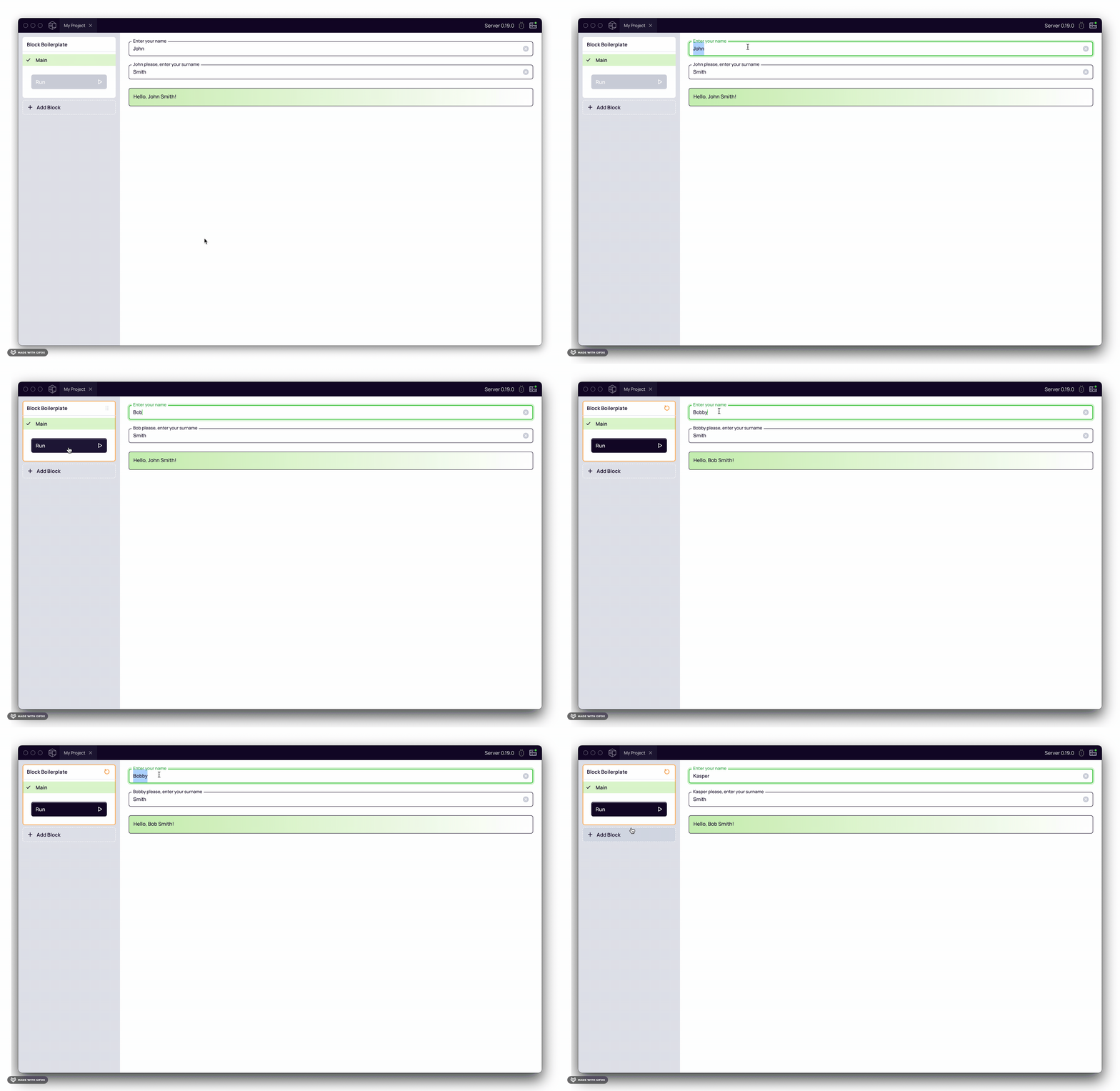
For an in-depth exploration of Vue's reactivity, you can read this guide.