Clone Tracking
Tracking individual clones over time is crucial for understanding how the immune system responds to stimuli like vaccinations, infections, or therapies. This longitudinal analysis, often called clone tracking, allows researchers to monitor the expansion, contraction, and persistence of specific immune cell populations. By tracking these dynamics, we can identify which clonotypes are driving an immune response, assess the durability of that response, and uncover potential biomarkers for disease or treatment efficacy.
This guide demonstrates a fundamental clone tracking workflow in Platforma: identifying a set of interesting clonotypes at a specific time point and visualizing their abundance across an entire experiment.
Project setup
Before you begin, ensure you have a project with a completed MiXCR Clonotyping or Import V(D)J Data block. The workflow described here relies on the clonotype tables generated by these upstream analyses.
Step-by-step guide
The clone tracking workflow consists of two main phases:
- Selection: Identifying and tagging the specific clonotypes you wish to track.
- Visualization: Plotting the abundance of these tagged clonotypes over time to observe their dynamics.
We will illustrate this by identifying the top 10 most abundant clonotypes at a peak response time point and then tracking their fraction across the entire experiment.
Phase 1: Select and tag clonotypes with the Clonotype Browser
First, we need to identify and label the clonotypes we want to track. The Clonotype Browser block is the ideal tool for this, as it allows for interactive filtering and annotation of your clonotype data.
- From your project pipeline, click the + Add Block button.
- Use the search bar to find and select the Clonotype Browser block.
- Click Add to Project to add it to your analysis pipeline and run it.
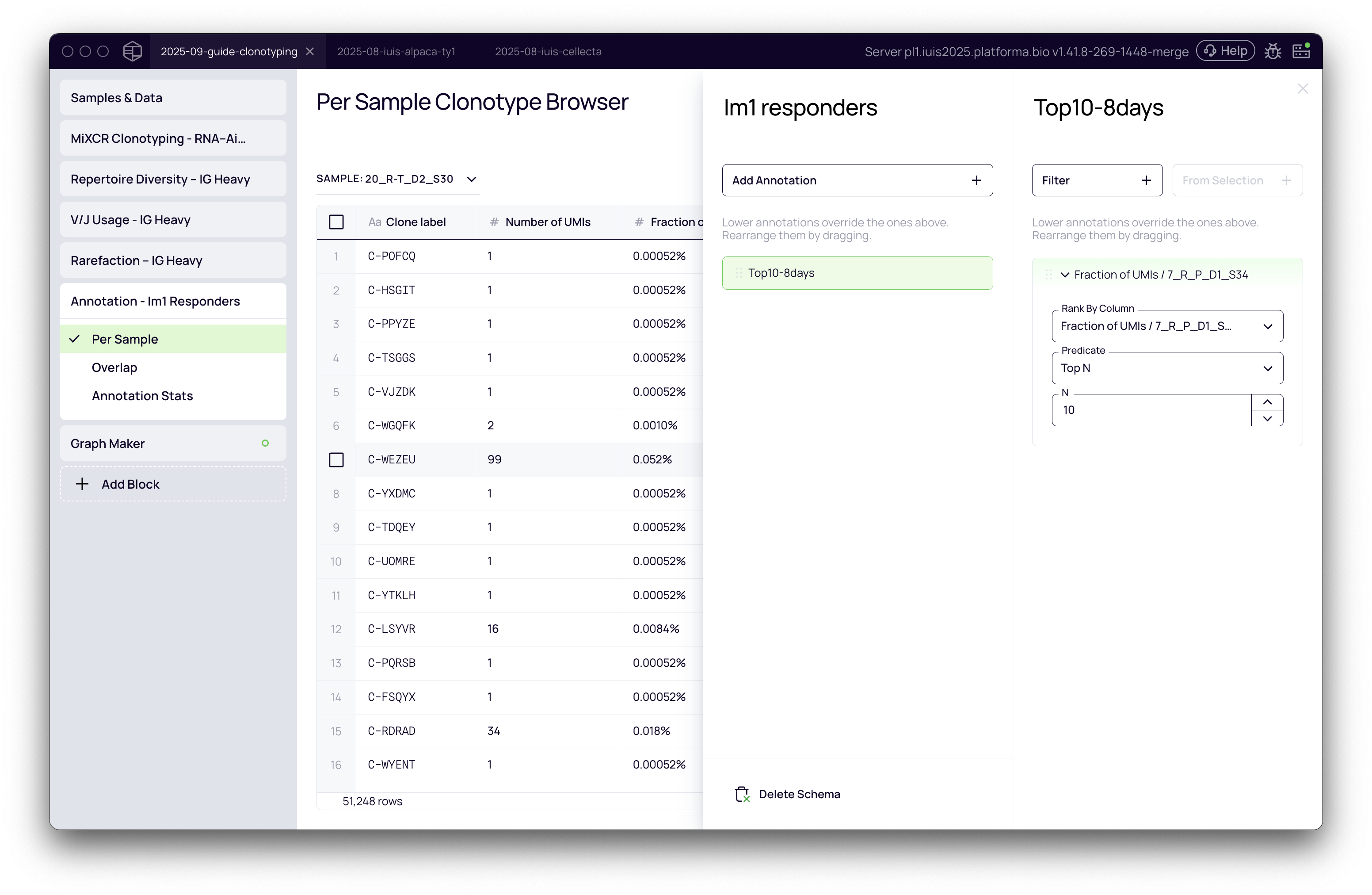
Once the block has run, we will create an annotation to tag the clonotypes of interest. In this example, we'll tag the top 10 most abundant clonotypes from a sample representing the peak immune response (e.g., "8 Days After Im1").
- Inside the
Clonotype Browserblock click the Annotations button in the top-right settings panel. - In the
Annotationspanel, create a new annotation schema by clicking Choose the Annotation Scheme type and selecting Global. Name your schema (e.g.,Im1 responders) and click Apply. - Click Add Annotation to create a new tag. Name it
Top10-8days. - Configure the filtering rule to identify the clonotypes:
- Column: Select
Fraction of UMIsfor a specific Day 8 sample (e.g.,7_R_P_D1_S34). - Predicate: Choose
Top N. - N: Enter
10.
- Column: Select
- Click the Run button on the left panel to apply the annotation. The block will tag the top 10 clonotypes from that sample with the
Top10-8dayslabel.
You can review summary statistics for your new annotation in the Annotation Stats tab, which shows the number and total frequency of tagged clonotypes in each sample.
Phase 2: Visualize clonotype dynamics with Graph Maker
With our clonotypes of interest now tagged, we can visualize their abundance over time using the powerful Graph Maker block.
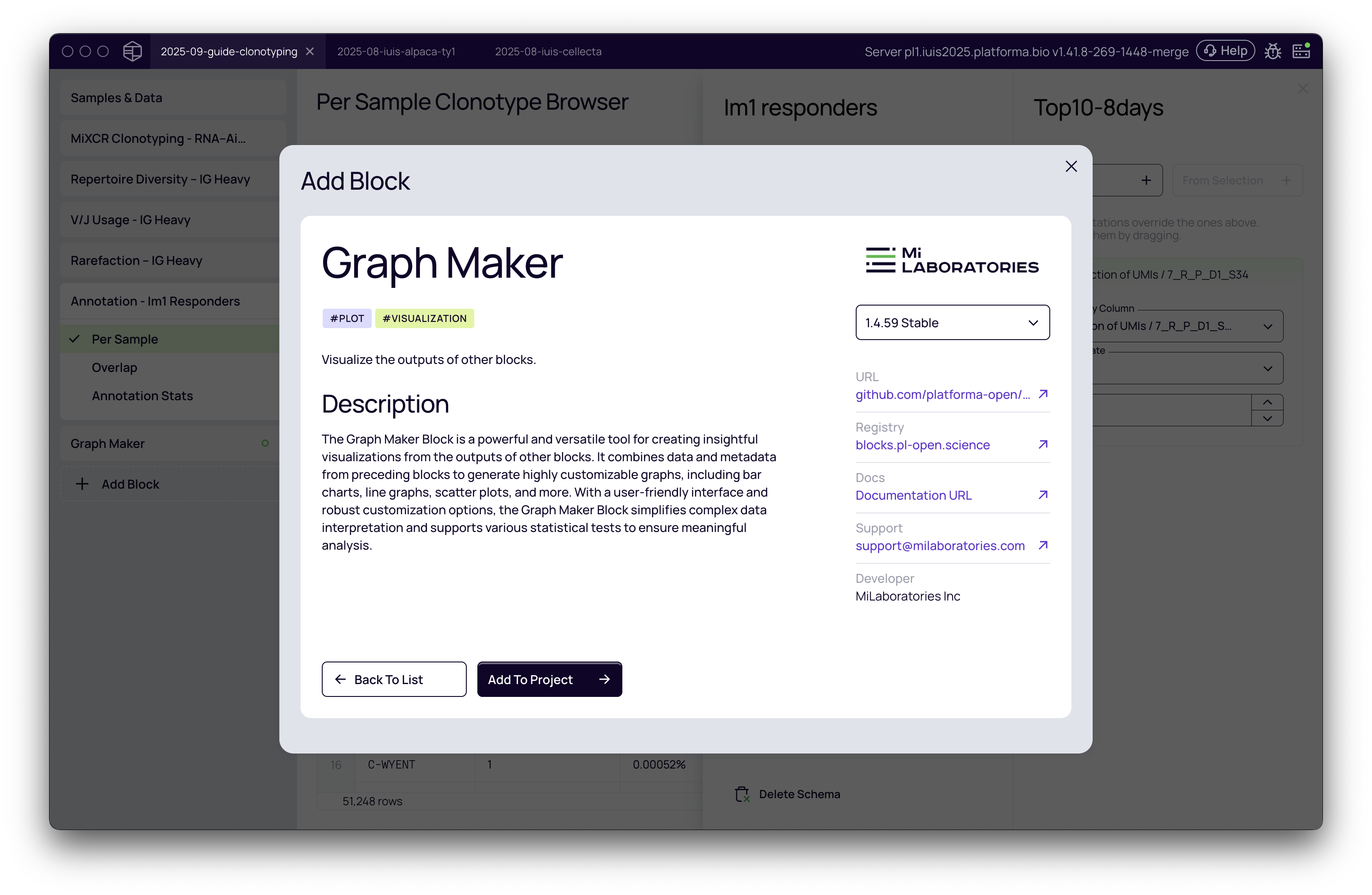
- Click + Add Block and add the Graph Maker block to your project.
- Inside the
Graph Maker, select the Stacked Bar + Stream Area template to start.
Configure the graph
Next, we map the data to the chart variables to build our tracking plot.
- Set the Y-axis: In the Data Mapping panel on the right, drag
Fraction of UMIs / RNA-AIRR / IG Heavyfrom the variable list and drop it onto the main data mapping area. - Set the X-axis: Drag the
time_pointmetadata variable into the Primary grouping field. This will arrange the data along the x-axis by time point. - Filter for Tagged Clonotypes: Drag your annotation,
Im1 responders / RNA-AIRR / IG, into the Filter field and select theTop10-8daystag. This is the key step that focuses the plot only on the clonotypes we selected. - Group by Clonotype: To see the contribution of each individual clonotype, drag
CDR3 aa / RNA-AIRR / IG Heavyinto the Secondary grouping field.
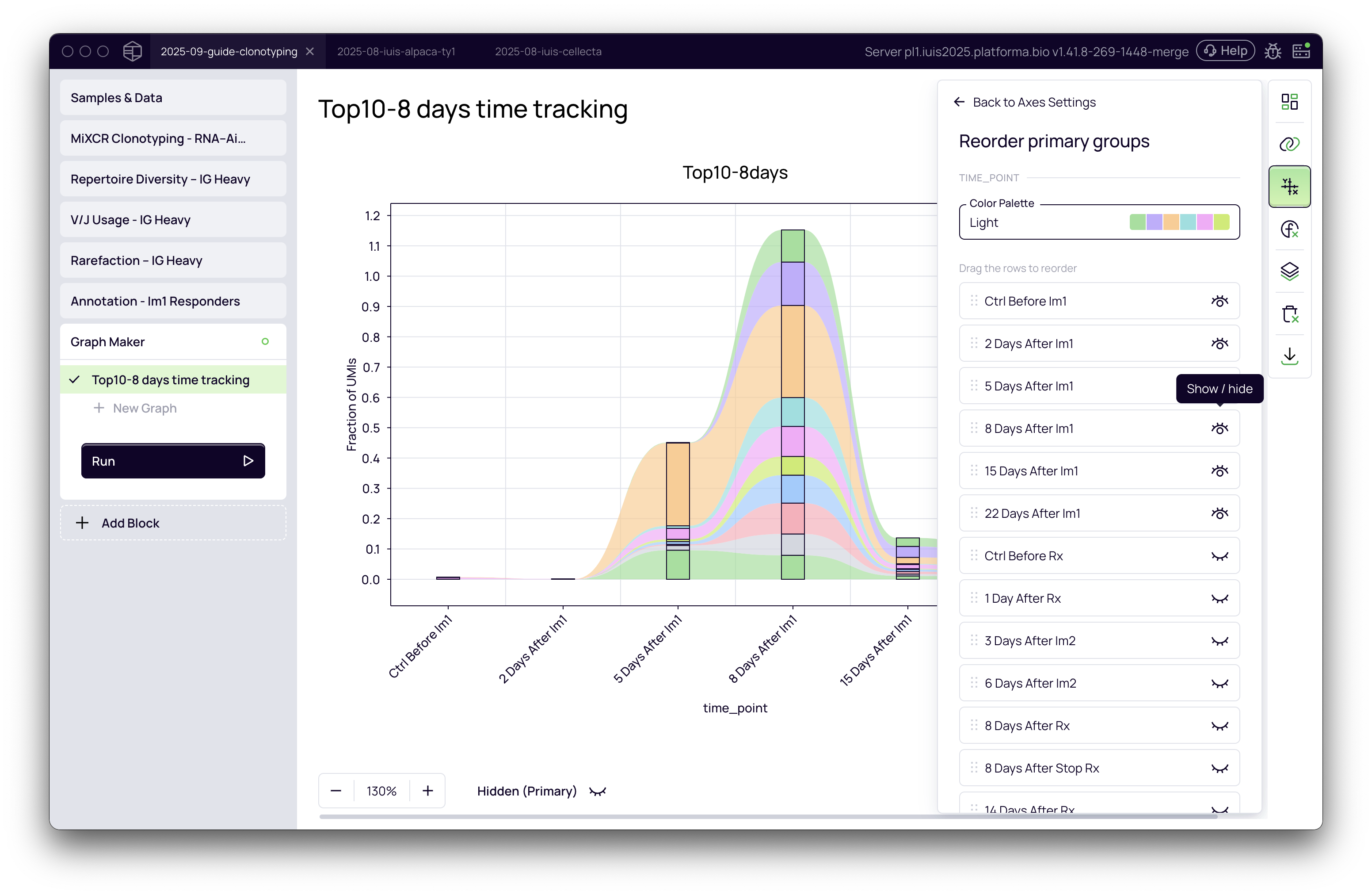
The plot will update to show a stacked bar chart where each color represents one of the top 10 clonotypes, and the height of the bar shows their combined fraction at each time point.
Customizing the visualization
A basic plot is a good start, but Platforma's Graph Maker allows for deep customization to make your visualization clearer and more insightful.
Order the X-axis chronologically
Time points on the x-axis may not appear in chronological order by default. To fix this, go to the Axes settings tab (the graph icon) and find Primary group order. You can manually drag the time point labels to arrange them chronologically (e.g., Ctrl Before Im1, 2 Days After Im1, 5 Days After Im1, etc.).
Change the plot type for deeper insights
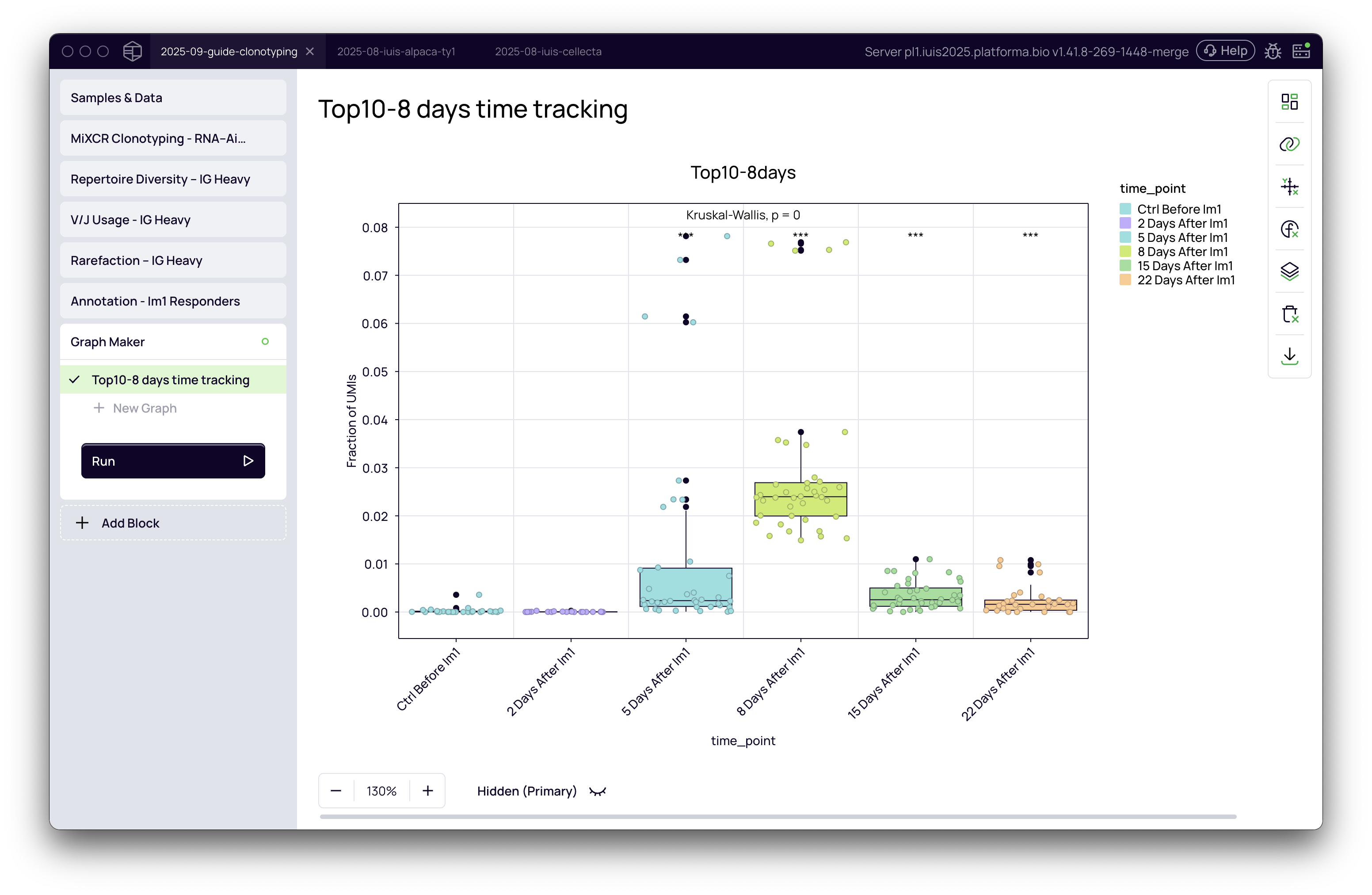
While a stacked bar chart shows the total fraction, other plot types can reveal different aspects of the data. For instance, to better visualize the frequency distribution of the individual clonotypes within your tagged set, go to the Template settings tab (the grid icon) and select the Boxplot + Jittered Dots template. Each dot will now represent the frequency of one of the top 10 clonotypes in a given sample across your replicates.
Add statistical analysis
To quantify whether the observed changes over time are statistically significant, navigate to the Statistics settings tab (the flask icon).
- Enable Overall p-value and select a method like
ANOVAto test for differences across all time points. - Enable Pairwise p-value and select a method like
Wilcoxonto compare specific time points against a reference (e.g.,Ctrl Before Im1).
You can now rename your graph block (e.g., Top10-8days time tracking) and export the publication-ready figure using the Export button.
Practical scenarios and recommendations
| Your Goal... | How to Select Clonotypes | Recommended Visualization | Why? |
|---|---|---|---|
| Track the top responders after a stimulus (e.g., vaccination) | Use the Clonotype Browser to find the Top N most abundant clonotypes in a peak response sample. | Stacked Bar Chart to see total contribution; Boxplot + Jittered Dots to see individual clone behavior. | This is the simplest and most direct way to see how the most dominant clonotypes from a key time point behave across the experiment. |
| Monitor persistence of clones over a long period | In the Clonotype Browser, filter for clonotypes present at both an early and a very late time point. | Line + Jittered Dots | This helps visualize the trajectory of individual clones, making it easy to spot those that are maintained long-term. |
| Confirm if a specific, known clonotype is present and track it | Use the Clonotype Browser filter to find a clonotype by its specific CDR3 sequence. | Any plot type will work, as you are likely tracking just one or a few clonotypes. | If you have prior knowledge of a specific TCR or BCR sequence, this allows you to zero in on it and monitor its dynamics directly. |
Next steps
This guide covers a basic yet powerful method for tracking clonotypes based on their abundance in a single sample. Platforma also supports more advanced and targeted workflows for clone tracking, which will be covered in future guides. These include how to:
- Identify and track differentially abundant clonotypes that significantly expand or contract between conditions.
- Track clusters of functionally related clonotypes identified by the Clonotype Clustering block.
- Monitor the dynamics of specific sequence motifs or somatic hypermutation (SHM) trees.